App Actions
App actions let your app add entry points that users invoke from inside Roam:
- a slash command typed in the message composer (
/create-issue), and - a message context menu action on an individual message.
When a user invokes an app action, Roam sends a signed POST to a single
endpoint you control — your app's Interactivity URL — and renders whatever
you return.
You can respond with a short confirmation message. For more complex actions, you can respond with a modal: a Block Kit form the user fills in, which you can update as they go.
This page covers setup and behavior. For payload shapes, response formats, and the modal contract, see the App Actions API.
Requirements
Three things must all be true, or your action will not appear anywhere:
- Your app has the
commandsscope. - Your app has an Interactivity URL.
- The app is available with Organization access in that workspace. API key
apps have this by construction. OAuth apps need an Organization-access install
whose grant includes
commands. Personal access tokens, and personal-mode OAuth installs, never receive app actions.
If any of these is missing, your action will not show up in the composer or in the message context menu.
Setup
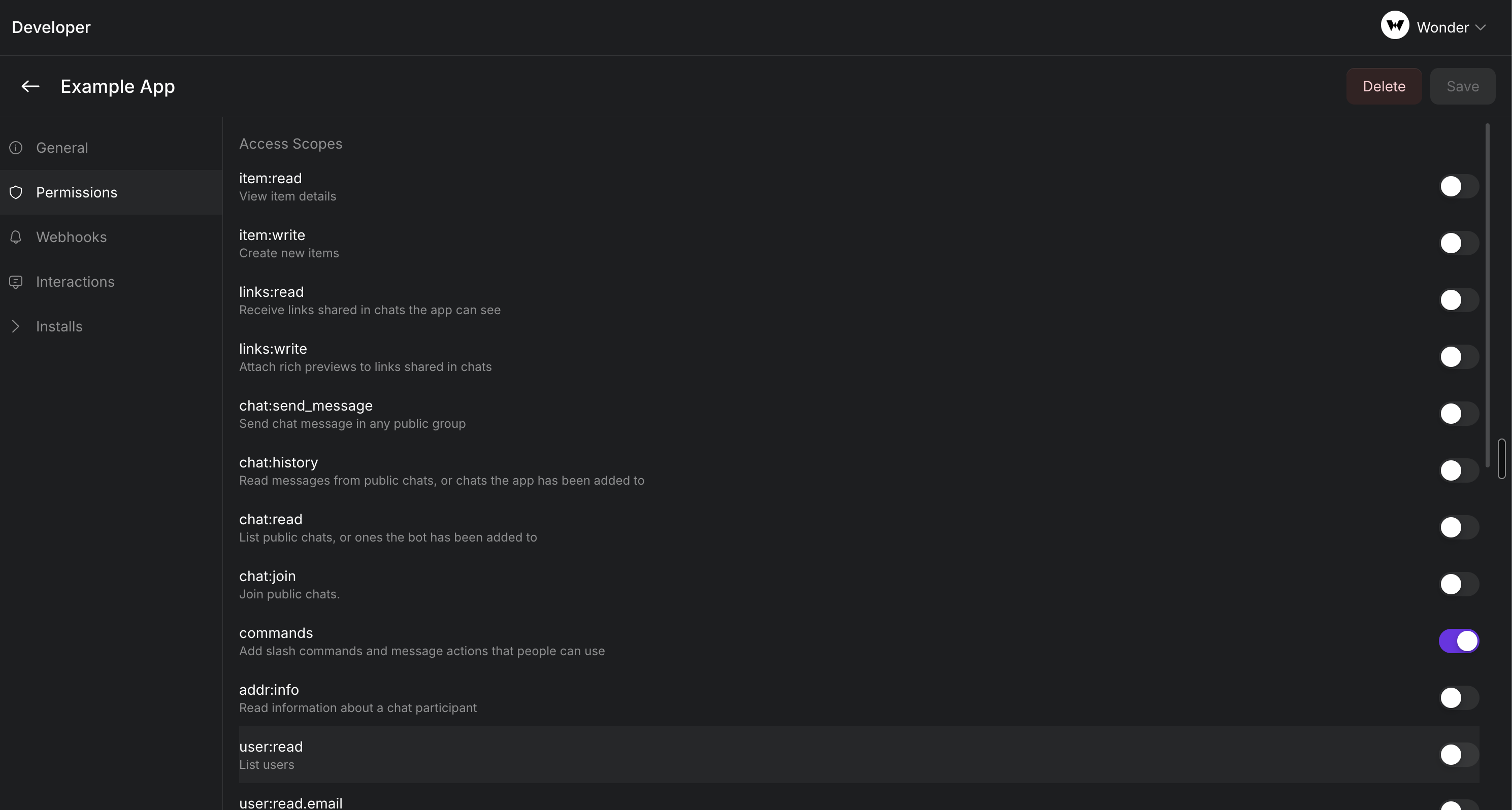
1. Enable the commands scope
In Roam Administration → Developer, open your app, go to the
Permissions tab, and enable commands.
This one scope gates both halves of the feature: without it your actions are neither listed to users nor executable. See Scopes.
2. Set your Interactivity URL
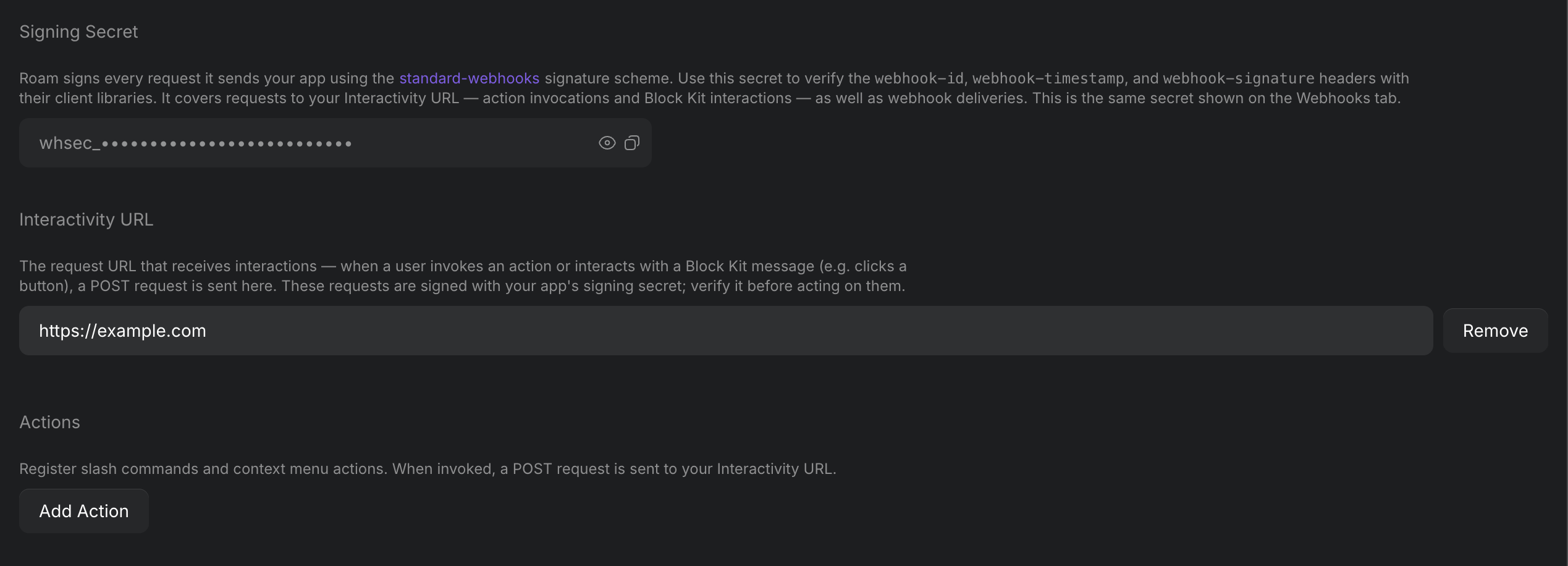
On the Interactions tab, under Interactivity URL, add the endpoint that will receive interactions:
https://example.com/roam/interactivity
All app action interactions for your app are sent to your interactivity URL and routing happens using the payload's type field.
The URL must be publicly reachable. Roam rejects private and loopback
addresses, so http://localhost:3000 will not work even though the console
accepts the text; use a tunnel during development (see
Developing locally).
3. Register your actions
Still on the Interactions tab, under Actions, add one row per action.
| Field | Rules |
|---|---|
| ID | 1–32 characters, lowercase letters, digits, - and _ only. IDs must be unique within the app. |
| Label | 1–64 characters. |
| Description | Up to 256 characters, optional. |
| Type | Which surfaces the action appears on — see below. At least one must be selected. |
An app may register up to 10 actions.
Type is a pair of checkboxes. Tick each surface your handler supports — at least one:
| Checked | Appears in |
|---|---|
| Slash Command | The composer's / menu |
| Message Context Menu | A message's overflow menu |
Tick Message Context Menu only if your handler can do something useful with a specific message: a message action's payload includes the message it was invoked on, and a slash command's does not.
Slash commands use the ID you provide as the command. So an action with the ID "create-issue" is invoked using /create-issue if set to be a slash command.
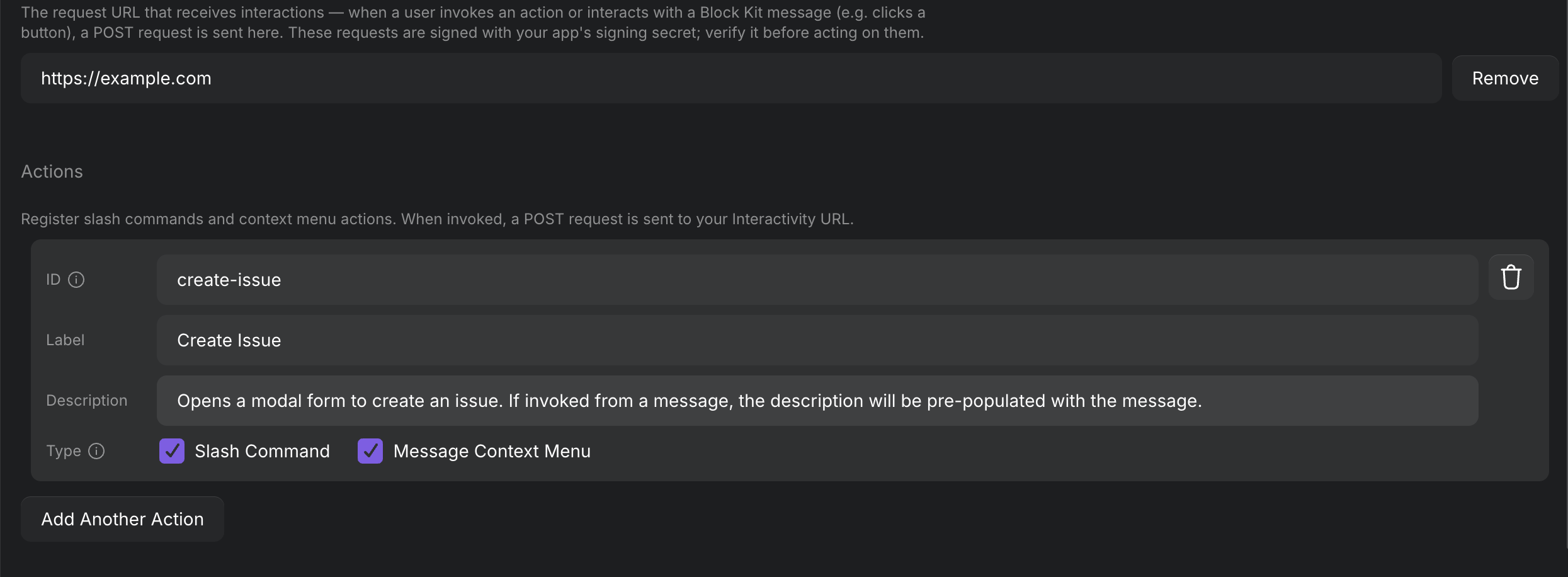
In the example above, the action can be used both as a slash command (/create-issue) or from the message's context menu.
4. Copy the signing secret
Also on the Interactions tab, copy the signing secret.
This is the same secret used for webhooks, and it signs interactivity requests with the same Standard Webhooks scheme. If you already verify Roam webhooks, you can reuse that code unchanged. See Signature verification for the algorithm and language samples.
Verifying is not optional in practice: your Interactivity URL is a public endpoint, and the signature is the only thing distinguishing a real dispatch from anyone who guesses the URL.

How users invoke actions
Slash commands
The user types / in the message composer and picks from the menu. A slash command opens the type-ahead menu only if there is nothing else in the message.
Slash commands don't support arguments.
Pressing Enter with no row selected runs a command only when the typed text is an exact, unambiguous ID match.
Message context menu actions
The user opens a message's overflow menu, then App Actions → the action label. When actions from multiple apps are available, they are grouped under app-name headings.
Which users see your action
Your action appears for members of the roam where the app is installed, in that roam's channels and in DMs.
Responding
Your endpoint responds to the POST directly. The full contract is in the
App Actions API; in summary:
| You return | The user sees |
|---|---|
200 with an empty body | Nothing — a deliberate no-op |
200 with {"infoMessage": "…"} | A toast with the message |
200 with a modal object | A modal opens |
From there, a modal can be updated, closed, or annotated with validation errors as the user interacts with it.
Timing and failure
Your endpoint must respond within 3 seconds. There are no retries, and redirects are not followed.
| Situation | The user sees |
|---|---|
| No response within 3 seconds | "App didn't respond" |
| Connection error | "App didn't respond" |
| Any 3xx, or a non-2xx status | "App didn't respond" |
| A 2xx body you sent that Roam cannot parse | "App returned an invalid response" |
| A parsed response containing invalid blocks or a malformed modal | "App returned invalid blocks" |
If your action needs to do real work — calling a third-party API, waiting on a
job — acknowledge immediately (an infoMessage, or a modal), then post the
result into the chat with chat.post when it is ready.
Posting the result also requires the chat:send_message scope (or the legacy
chat:write scope) and access to the destination chat.
Developing locally
Roam dispatches over the public internet, so your endpoint must be reachable from outside your machine. But you can still use tunnels to test locally.
For example:
# example: cloudflared
cloudflared tunnel --url http://localhost:3000
# → https://random.trycloudflare.com
Set the Interactivity URL to the tunnel's HTTPS address.
Prefer a stable tunnel domain if your provider offers one. The Interactivity URL is stored on the app, so an ephemeral URL means editing the app every time you restart the tunnel.
Troubleshooting
My command doesn't appear in the / menu.
Check the three requirements. Then confirm Slash Command is
checked on the action, and that you are typing / as the first character of an
empty message.
My action doesn't appear in the Message Context menu. Message Context Menu must be checked on the action.
The user sees "App didn't respond."
Roam could not reach you, or you took longer than 3 seconds. Check that your
Interactivity URL is publicly reachable and returns quickly. A non-2xx status
or redirect also surfaces this way — redirects are never followed, so respond
2xx directly. For example, an unrecognized actionId answered with a 404
produces the same message.
Nothing happens at all, and I see no request.
If you return 200 with an empty body, Roam treats that as an intentional
no-op and shows nothing. A handler that falls through its routing without
writing a response looks identical to a deliberate no-op from the outside — log
the incoming type, actionId, and viewId and confirm your routing covers
the combination.
Signature verification fails. Verify over the raw request body. Parsing and re-serializing the JSON changes the bytes and invalidates the signature.